
Maps Maker Pro makes it easy to build multilingual maps by fully supporting the translation solution WPML and Polylang translation plugin.
This tutorial will show you how to properly use this feature to display your map content in different languages (using Maps Marker Pro 4.0 or higher).
If you are using WPML, make sure you have downloaded and activated the following plugins:
You find those plugins after logging into your account and navigating to Downloads:
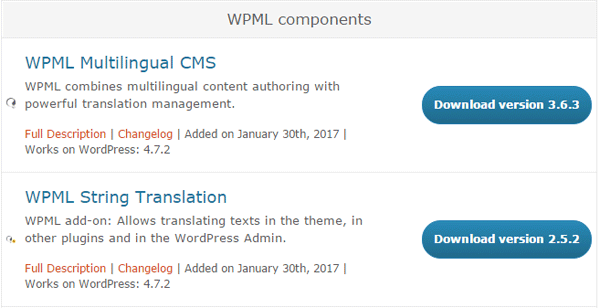
Afterwards the WPML installation is finished and you can start translating.
Maps Marker Pro content is technically stored as strings. You can translate them as all other content from the WPML Translation Dashboard.
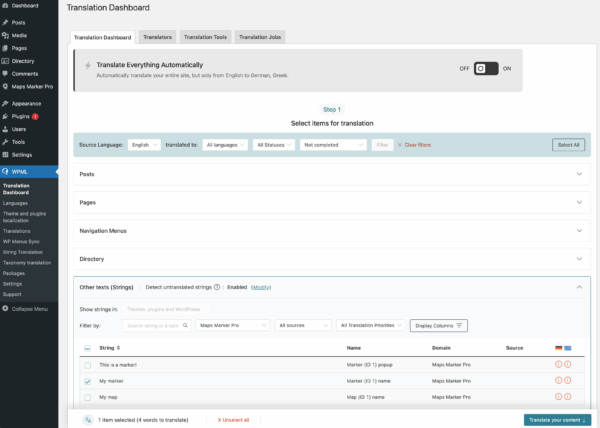
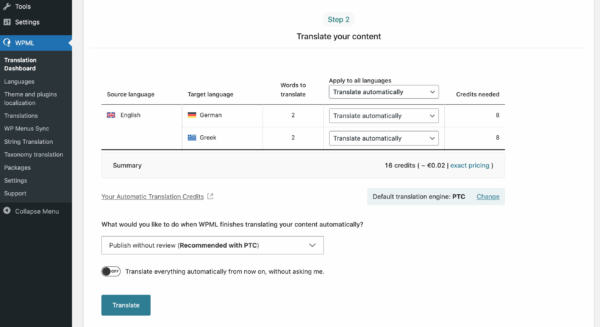
Note: Direct access via “WPML > String Translation” remains possible for specific cases, but the Translation Dashboard is the preferred method for managing your site’s content centrally.
As an alternative to WPML you can also use Polylang or Polylang Pro for translating your maps – just activate the related plugin and you can start translating.
The following user-generated strings can be translated using the WPML string translation or Polylang plugin:
Maps
Markers
On the “Tools”-page you will find a WPML/Polylang tool which allows you to prepare all existing maps strings for translation:

Using this tools is not needed if you have not created any markers yet or if you want to add multilingual support for selected maps only.
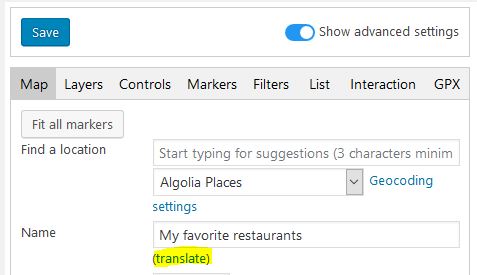
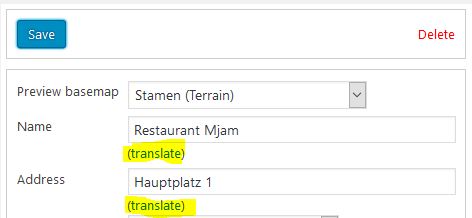
You will find a “(translate)” links for existing maps on map edit pages:
On marker edit pages there are “(translate)” links available:
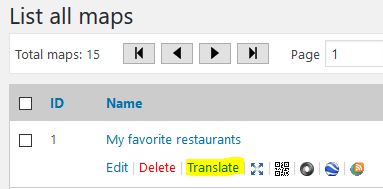
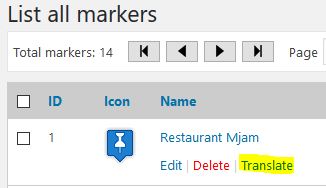
In addition, you will also find translate links on the “list all maps” and “list all markers” pages when hovering the entries:
Clicking on one of those links opens the WPML or Polylang string translation interface for the selected map, below an example for a marker map:
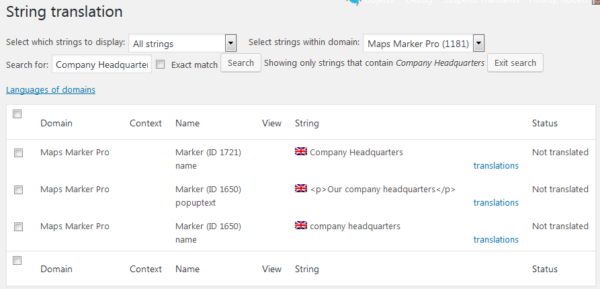
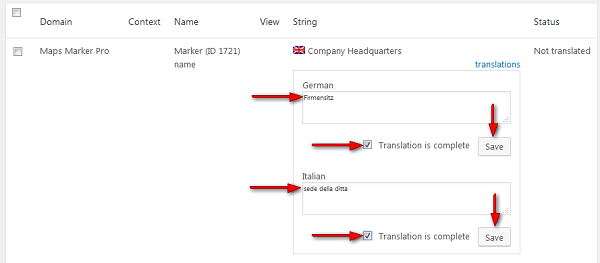
As next step you have to click on translations, which opens input fields for all your available translations. Enter the translation, tick the checkbox “Translation is complete” and finish by clicking the button “Save”:
That´s it. Embed the link to your map in a post and use e.g. a WPML or Polylang language switcher widget to verify the results.
Q: I click on a “translate” link for an existing marker or layer but WPML/Polylang does not find any related strings
A: either use the related Tool to batch-initialize all existing strings for WPML/Polylang or save the marker or layer once before clicking on the “translate”-link – this will prepare the strings for WPML/Polylang.
Q: my translations are not displayed
A: make sure that the status of your strings is “Translation complete” by ticking the appropriate checkbox – only strings with this status are processed by WPML/Polylang.
Q: my translations are not shown on backend
A: Maps Marker Pro supports WPML/Polylang for frontend maps – switching language on backend (e.g. via admin bar) is not supported.
If you have any issues with the WPML plugins, please consult the WPML support. If you have any issues with the Polylang plugin, please consult the Polylang support forum. If your issues is Maps Marker Pro related or if have any further questions, please open a support ticket.
Subscribe to our newsletter to not miss any news - you can unsubscribe at any time: